How to use WishPilot, step by step
From installing the extension to reading your first report, here's the full walkthrough, with room for screenshots of every step.
From install to your first run.
Install WishPilot
Add WishPilot to Chrome from the Chrome Web Store. It installs like any other extension, no account or sign-up involved.
Open LinkedIn's Catch Up page
Go to linkedin.com, then My Network, then the Catch Up tab. This is the page WishPilot works on, and the only page it ever runs on.
Launch the panel
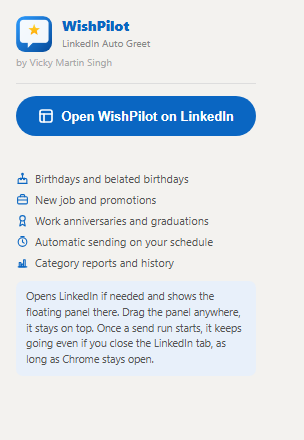
Click the WishPilot icon in your Chrome toolbar, then "Open WishPilot on LinkedIn." A floating panel appears on top of the page. Drag it anywhere, it stays put between visits.
Choose your categories
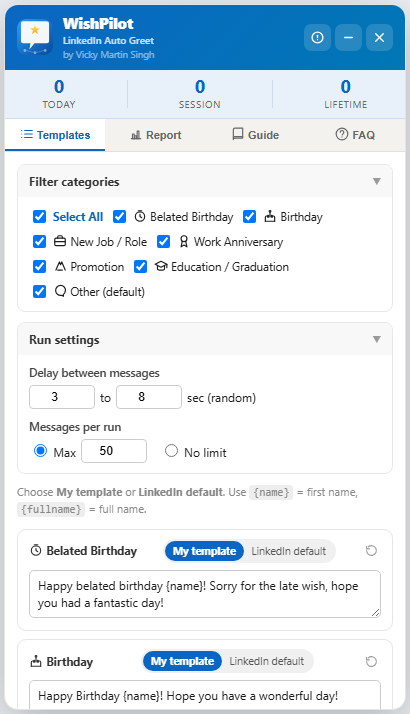
In the Templates tab, tick the occasions you want WishPilot to act on: birthdays, belated birthdays, new roles, work anniversaries, promotions, and graduations. Untick anything you'd rather handle yourself.
Write your templates
For each category, pick "My template" and write your own line using {name} and {fullname}, or pick "LinkedIn default" to send exactly what LinkedIn prefills, unchanged.
Press Start
WishPilot works through the visible cards, matches each one to a category, and sends your wish. Close the tab if you like, it keeps going as long as Chrome stays open.
Read the report
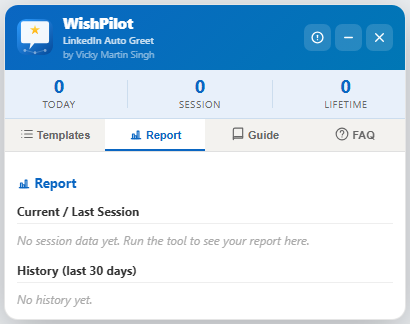
Switch to the Report tab for a category-by-category breakdown of what was sent, kept in your local history for next time.
Check the built-in Guide and FAQ
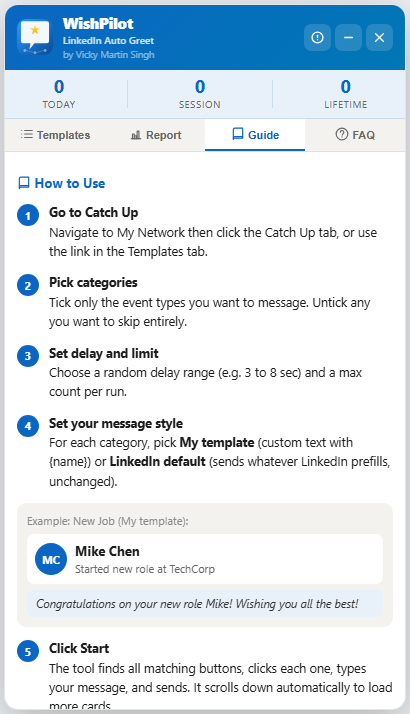
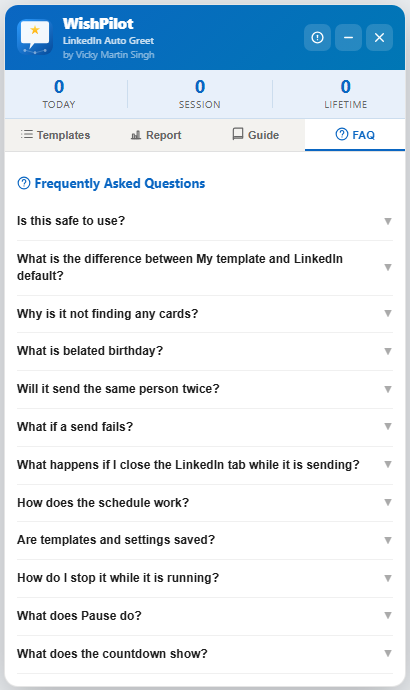
The panel itself has a Guide tab and an FAQ tab for quick answers without leaving LinkedIn.
The real extension, on the real page.
A quick look at the actual extension, from the toolbar popup to the floating panel it opens on LinkedIn.
All of it, in the free extension.
Six occasions recognized
Birthday, belated birthday, new job or role, work anniversary, promotion, and education or graduation, detected straight from LinkedIn's own card text.
Your own words
Custom templates per category, or fall back to whatever LinkedIn prefills, your choice, per occasion.
Runs on a schedule
Start a run and it keeps going in the background, powered by Chrome's alarm system. No need to babysit the tab.
Draggable, persistent panel
Lives on the Catch Up page, remembers where you left it, and stays out of the way while it works.
Category reports & history
A full breakdown after every run, so you always know exactly who was wished and for what.
Pick your categories
Select all, or choose exactly which occasion types to include. Nothing sends that you haven't ticked.
Staying in touch shouldn't be a chore.
What makes it worth installing.
Built for one page, done properly
WishPilot isn't a general LinkedIn bot. It's focused entirely on the Catch Up page, which keeps it simple, predictable, and easy to trust.
Nothing to configure on a server
There's no dashboard to log into, no API key to paste in, and no account to forget the password to. Install it and it's ready.
Survives closed tabs
Most page-automation tools stop the moment you navigate away. WishPilot's runs are scheduled through Chrome's own alarm system, so closing the tab doesn't cancel the job.
Your words, not a script's
Templates are plain text you write yourself, with two placeholders. No AI-generated messages, no guessing what it might send on your behalf.
Free, with nothing held back
Every feature on this page is in the free extension. There's no upgraded tier hiding the parts that matter.